[How To] Complete Guide to Manually Upgrading an End-of-Service Windows System
Answer
When your Windows version reaches the end of service date defined by Microsoft, the system will no longer receive security updates and may no longer display upgrade notifications through Windows Update.

In this case, you can still manually upgrade your system to the latest version by downloading the official installation media from Microsoft.
For example, Windows 11, version 22H2 (OS Build 22621), reached end of service on October 8, 2024.

(Ref: https://learn.microsoft.com/en-us/lifecycle/announcements/windows-11-22h2-end-of-updates-home-pro)
This FAQ applies to all MSI notebook models.
To get the latest Windows upgrade manually, follow the steps below to download the Windows Media Creation tool to manually upgrade to the latest Windows version.
1. Visit Microsoft Download Page and select Download Windows 11 Disk Image (ISO) for x64 devices.
Download Link: www.microsoft.com/en-us/software-download/windows11?msockid=3b2e4aa775f2633c188a5fe574e262ac

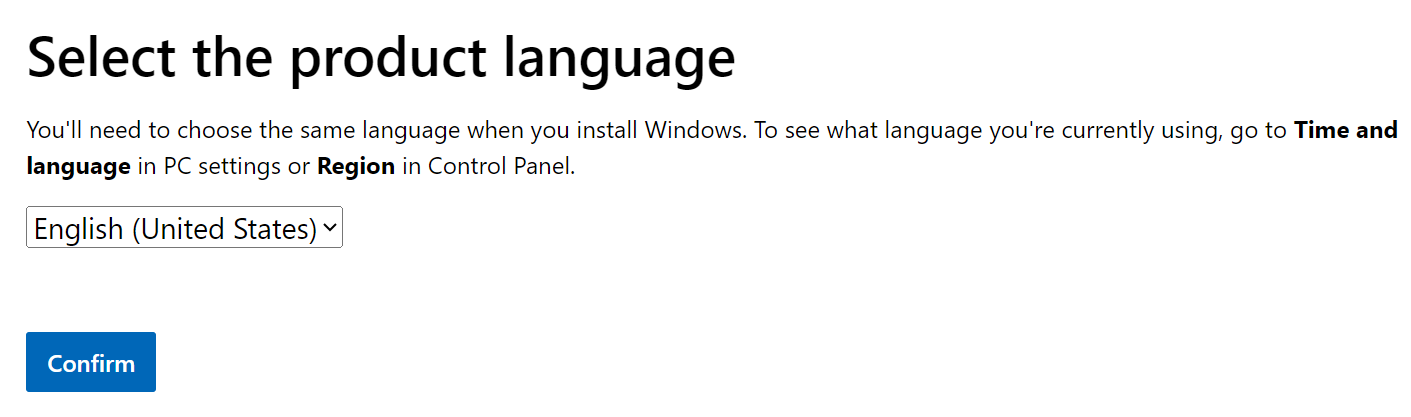
2. Click Download Now, select the language of your current operating system, and click Confirm.
3. Click 64-Bit Download.

4. Double-click the Win11 24H2_x64.iso file

5. Click Open

6. Right-click setup.exe and select Run as administrator.

7. Click Accept when it shows Applicable notices and license terms.
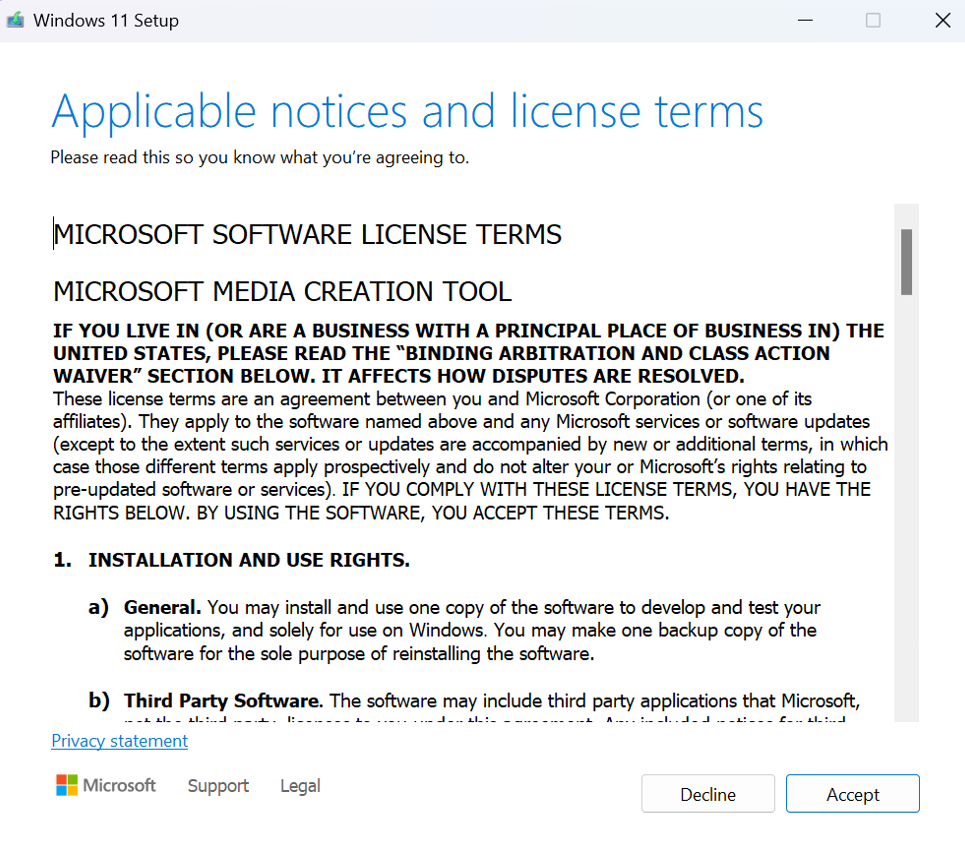
8. Click Install when it shows Ready to install.

9. After the installation is complete, the system will reboot.
*Note. The installation process may take several hours. Once completed, the system will restart automatically. During the update process, make sure the power adapter is connected and do not turn off your device.
FAQ
Q: What does “end of service” mean, and what impact does it have?
A: When an operating system version reaches end of service, Microsoft will no longer provide the latest security updates or system patches for that version. As a result, your computer may no longer be protected against the latest cybersecurity threats and may also experience compatibility issues with newly released software or games.
Q: What should I do if the update takes too long or fails during the process?
A: It is recommended to follow the steps below. This can significantly reduce the update time and help prevent interruptions caused by an unstable network connection during the update process.
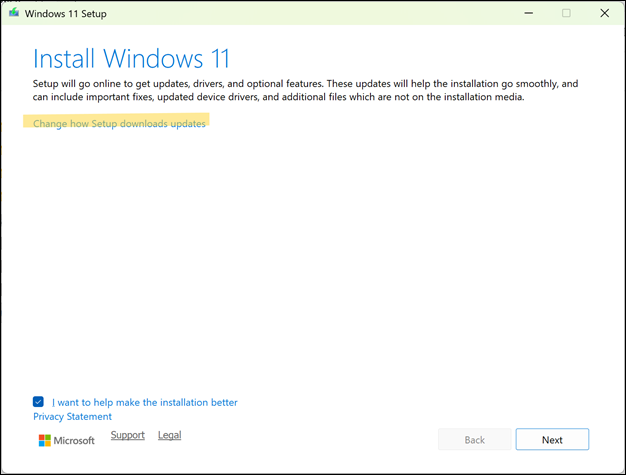
- You don't need to connect to the internet. After opening the Windows 11 disk image file, click Change how Setup downloads updates.
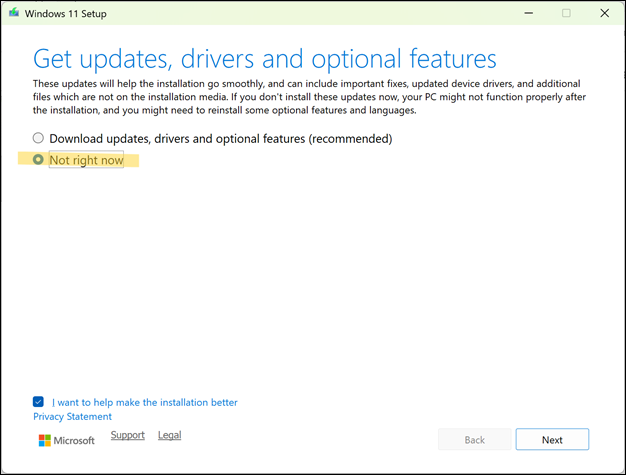
- Select Not right now, then continue with the update.
- After the update is complete, make sure to reconnect to the Internet and install the required updates.
